Department workflows
Props, VFX, music, post and deliverables, each with their own track.
Some departments need to track work that does not fit a shoot day. Each gets its own workflow.
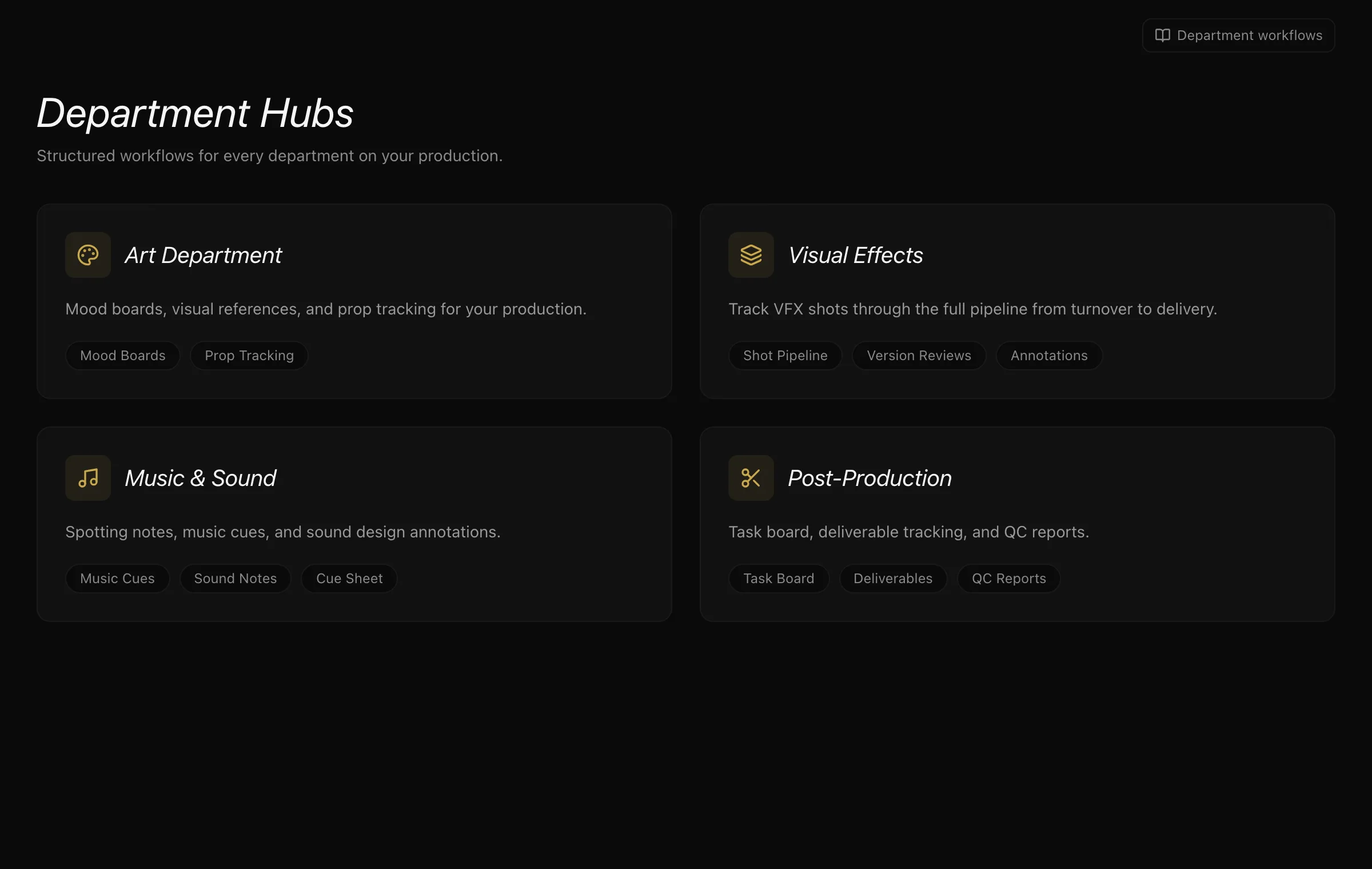
Props
Track a prop through sourced → on set → returned, or damaged. Each status change is recorded — press the history button on a prop to see every change, who made it and when.
VFX
VFX shots move through a real pipeline: turnover → layout → animation → FX → lighting → compositing → review → delivery. Each shot carries versions, and versions carry reviews, so a note is attached to the version it was made against rather than to the shot in general.
Music
Cues are temp, original or licensed, and move through spotted → in progress → demo → director review → approved → recorded → mixed. A cue that is dropped can be deleted from its row. Knowing which cues are temp matters long before delivery, because temp is the thing that has to be cleared or replaced.
Sound
Sound design notes attach to the scenes they concern.
Post
Post work is tracked as tasks, each with a department and priority, moving through not started → in progress → in review → completed.
Deliverables
Deliverables move through pending → in progress → delivered, then approved or rejected, with QC reports recording pass, fail or conditional. This is the end of the line — and the point where a production finds out whether what it made is acceptable to whoever commissioned it.
Mood boards
The art department keeps mood boards for reference — visual direction that lives with the project rather than in someone's inbox. Anyone who can edit the production can add references to a board, rename it, or delete it.
Adding references. Press Add Reference on a board and choose images, drop them in, or paste one you have copied (a screenshot works too). JPEG, PNG or WebP, up to 15 MB each. Every image needs a caption — it is what someone who can't see the image hears, and what the department reads off it. You can also say what a reference is for: look, lighting, colour palette, costume, location or prop. Uploaded images are private to your production. A link to an image elsewhere still works from the Link tab.
Linking a board. A board can be for one scene, for a sequence, or for the whole production — set it when you create the board or with Edit Board. A scene's boards appear on the scene's page and in the Director's Room; a sequence's boards appear on the Sequences page.
Sketching
Press Sketch on a board — or on a scene or sequence, which draws onto its most recent board — to draw the look you have in mind.
- Tools: pen, pencil, marker and eraser. Keys B, P, M and E switch between them; [ and ] change the size; ⌘Z undoes and ⇧⌘Z redoes. Clearing the page can be undone too.
- Colours: the swatches, a custom colour, and the board palette — add a colour with the + and everyone on the production gets it on that board.
- Frame: pick the shape before you start — 2.39:1 scope, 1.85:1, 16:9, 4:3, 9:16 vertical or square.
- Draw over a reference: the pen button on an uploaded image opens it under the page, so you can mark changes on a location photo. Images linked from another site can't be drawn over — upload them instead.
- Keep working on it: the brush button on a sketch reopens it with every stroke, ready to change.
- On an iPad: draw with the Apple Pencil — pressure changes the line. Once the Pencil has touched the screen, a resting palm or finger no longer draws; use two fingers to zoom and move around the page. The hand button switches finger drawing back on. If fast strokes go missing, turn off Scribble in Settings → Apple Pencil.
An unsaved sketch is kept on your device every few seconds and offered back the next time you open it, so a dropped connection doesn't cost the idea. It reaches the board only when you press Save to board.
More in Running a Production
Didn't answer your question? Contact support.