Writing in the editor
The six elements, every shortcut, and the four things the editor does so you do not have to.
The editor is full-screen: the script in the middle, a panel on the right with your scenes and characters, and a bar at the bottom showing the revision colour and when the draft last saved.
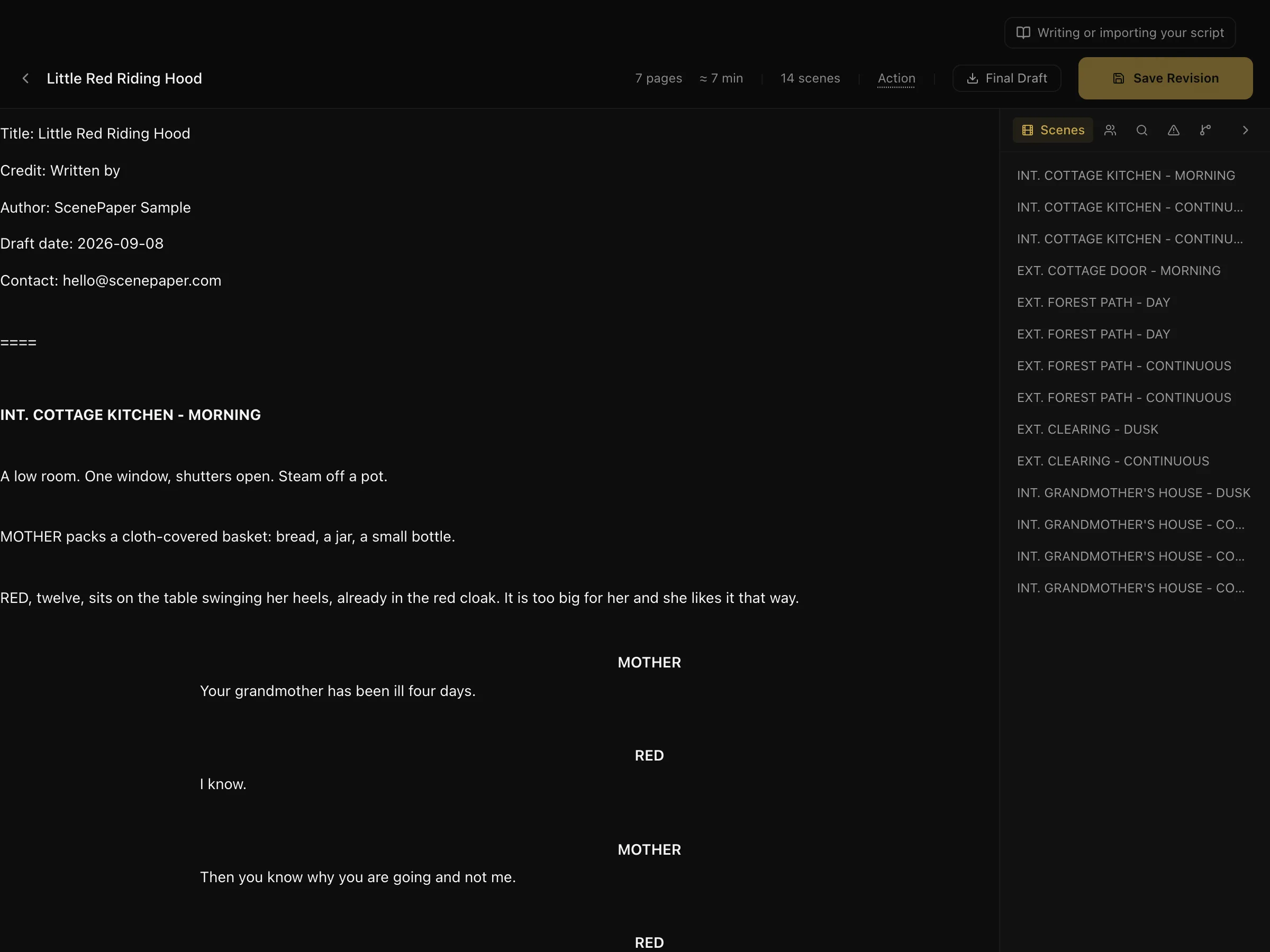
You are writing Fountain — plain text with a few conventions. You do not have to learn them, because the editor applies them as you type.
The six elements
Every line is one of six things, and the editor works out which as you type.
| Element | What it is | How it is recognised |
|---|---|---|
| Scene heading | Where and when | Starts INT., EXT., INT/EXT, I/E — or a full stop |
| Action | What happens | The default; anything not one of the others |
| Character | Who speaks | A short line in capitals with a blank line above it |
| Dialogue | What they say | The line after a character cue |
| Parenthetical | How they say it | Wrapped in brackets, under a cue |
| Transition | Cut, fade | Capitals ending in TO: |
Three of these go upper case on their own the moment you leave the line — scene headings, character cues and transitions. Type int. kitchen - day and it becomes INT. KITCHEN - DAY.
When the guess is wrong
Occasionally the editor reads a line as the wrong element — a character named BLACKOUT, an action beat in capitals. Force it:
| Shortcut | Element |
|---|---|
Cmd/Ctrl + 1 | Scene heading |
Cmd/Ctrl + 2 | Character |
Cmd/Ctrl + 3 | Dialogue |
Cmd/Ctrl + 4 | Action |
Cmd/Ctrl + 5 | Transition |
Cmd/Ctrl + 6 | Parenthetical |
Cmd/Ctrl + Z undoes; Cmd/Ctrl + Shift + Z redoes.
Enter knows what comes next
Pressing Enter does not just make a new line — it makes the line that usually follows:
- after a character cue → dialogue
- after a parenthetical → dialogue
- after dialogue → a blank line, then action
- after a scene heading → a blank line, then action
So a scene comes out as: heading, Enter, action, then a cue and Enter straight into the speech. You almost never reach for the shortcuts.
Two escapes: Shift + Enter gives you an ordinary line break, and pressing Enter on an element you have left *empty* backs out of it rather than committing to it. Starting a character cue and changing your mind costs one keystroke.
Tab finishes what you are typing
On a character cue, Tab completes a name you have already used. A script names the same handful of people on every page; typing them in full each time is the most repetitive thing in screenwriting. This matches Final Draft, so there is nothing to learn.
On a scene heading, Tab completes a location used elsewhere in the project — and this one earns its keep beyond typing speed. A location retyped slightly differently becomes a *second place* as far as the schedule and the location scout are concerned. Completion keeps them identical. It is only offered at the end of the line, so Tab in the middle of a heading behaves normally.
On a character cue with no match, Tab drops in a parenthetical instead.
Pulling in a character from the Story Room
Type @ and you get the characters from your Character Bible. Pick one and the cue is inserted — the same spelling as the story character, which is what keeps the two halves of the product lined up.
Arrow keys move through the list, Enter or Tab accepts, Escape dismisses it.
The bar along the top
Page count, an approximate running time, and the number of scenes — all of them recalculated as you type. The minutes come from the page count on the old rule of roughly a minute of screen time per page, which is the unit writers and 1st ADs actually think in.
Beside them, the element the cursor is currently sitting in. If that says Action while you are typing a character cue, that is the fastest possible warning that the line is not being read the way you meant it.
Exporting to Final Draft
Final Draft downloads the screenplay as an .fdx file.
One thing to know before you send it anywhere: the export is built from the last saved revision, not from what is on your screen. Anything typed since is not in the file. Save a revision first if you want your latest changes included — the editor warns you, but it is worth knowing why.
The side panel — five tabs
The column on the right is the part of the editor that does the thinking. Five tabs, no configuration: each one reads the script as it stands and updates while you type.
Scenes
Every scene the parser has found, in order. Click one and the script scrolls to it — this is how you move around a long screenplay without hunting.
It earns its place twice over, because it is also the fastest correctness check you have: if a scene is missing from that list, it is *not being recognised as a scene*. Nothing downstream — no breakdown, no stripboard, no call sheet — will know it exists. Put a full stop at the start of the line to force it.
Cast
Every character with a speaking line, pulled out of the text. Not a list you maintain — a list of who is actually in the script right now.
Click a name and the script jumps to their first line — the same way Scenes works.
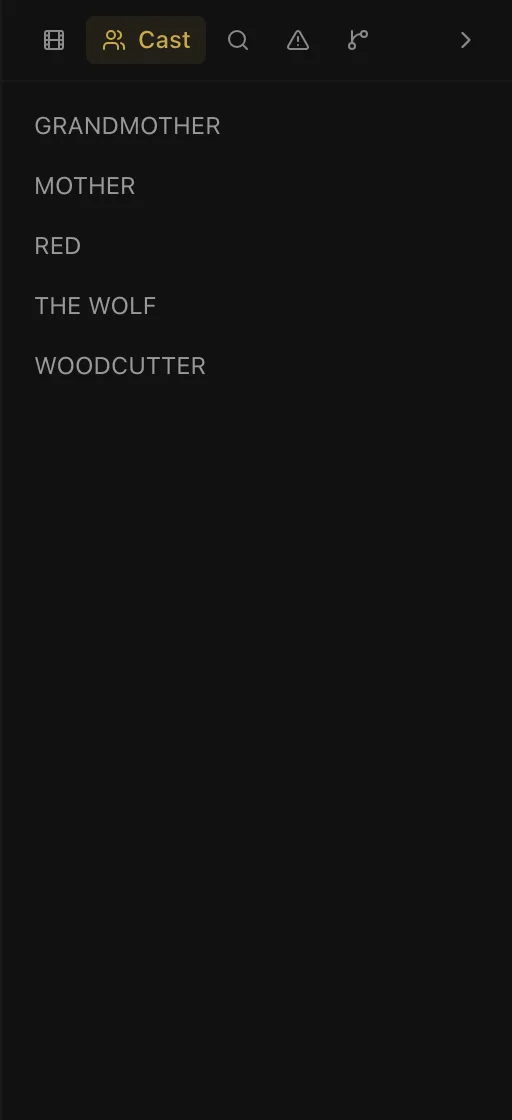
The useful reading is what is missing or surprising. A character you thought was in three scenes but who has one line; a name appearing twice because it was typed two ways. Both are invisible while writing forwards and obvious here. To rename one everywhere at once, use the Character mode in Find below.
Find
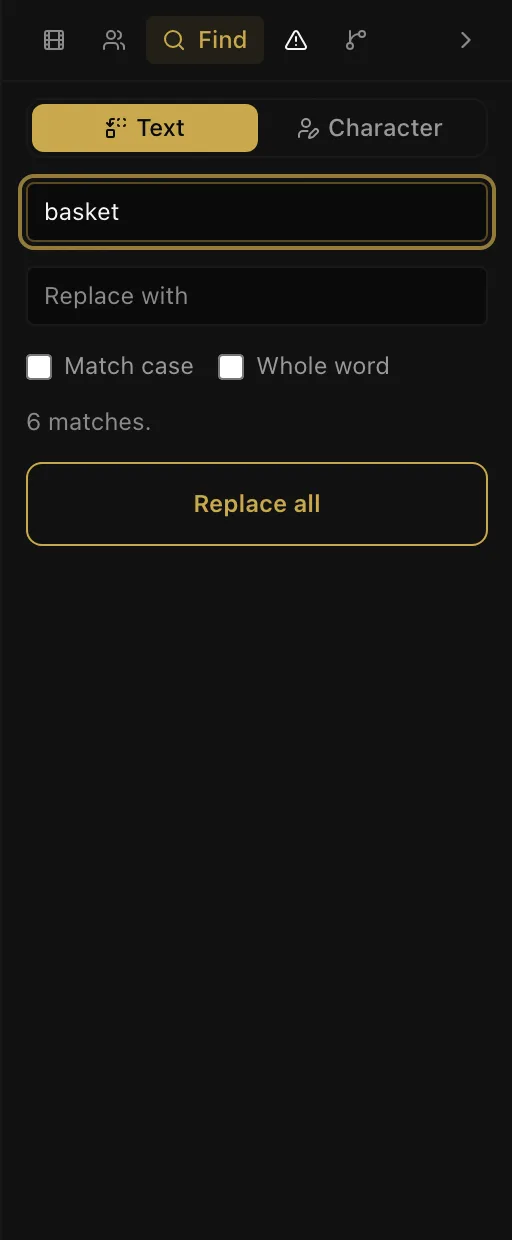
Two modes:
- Text — search the script, with Match case and Whole word. It reports the number of matches *before* you change anything, so Replace all is never a leap of faith.
- Character — rename a character everywhere at once.
The rename is the one to know about. Renaming a character by hand across ninety pages is where scripts acquire two spellings of the same person, and two spellings means two characters as far as the cast list, the sides and the casting board are concerned. Doing it here changes the cues and leaves the dialogue alone.
Notes
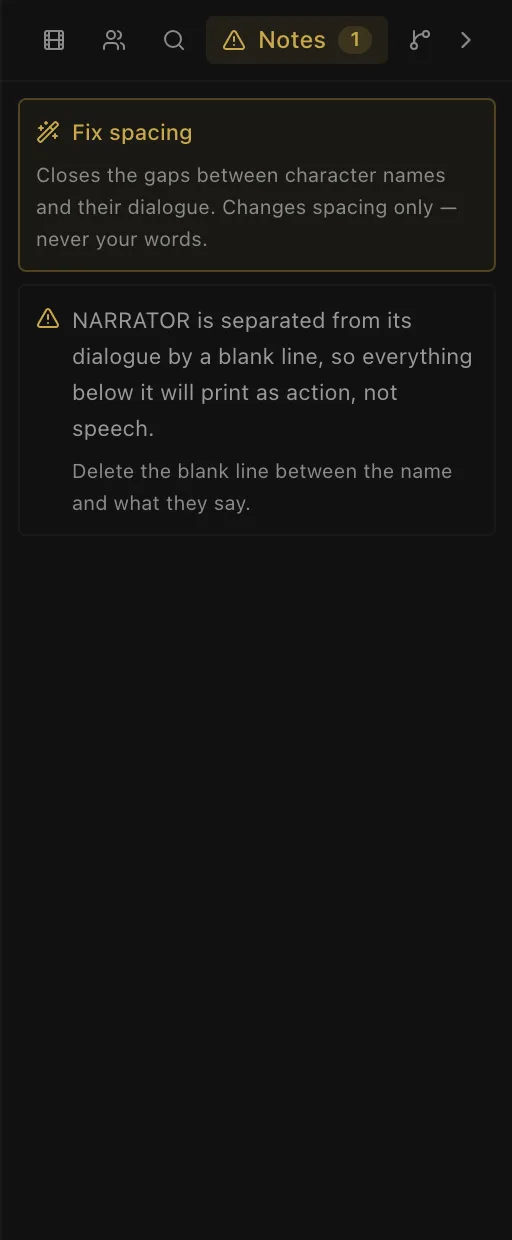
Format problems that will change how the script *reads* — not spelling, not style. The tab carries a count when there is something to look at, and says Nothing to flag — this reads the way it's written. when there is not.
The one it exists for: a character cue separated from its dialogue by a blank line. In Fountain that blank line ends the cue, so everything beneath it becomes action rather than speech — the character silently vanishes from the cast list and their lines stop being their lines. It looks completely normal on screen. This is the single most common way a pasted script arrives broken, and it is why Fix spacing exists: one click closes those gaps across the whole document. It changes spacing only, never your words.
Click any note to jump to the line it is about. Nothing here blocks you — a warning is a thing to have looked at, not a rule.
Story
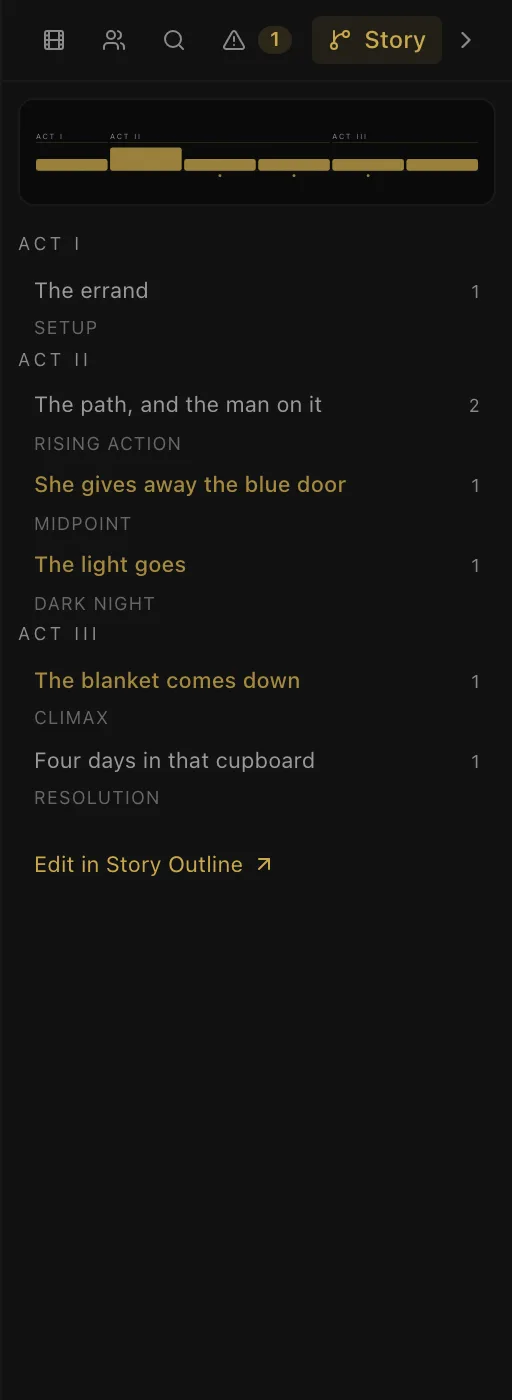
Your story spine, inside the editor.
The strip along the top shows the proportions of your three acts. Below it, every beat with the number of outlined scenes hanging off it, and the turning points — midpoint, twist, dark night, climax — picked out in gold, because those are the beats carrying the most weight.
This is the answer to a question you cannot ask any other way while writing: *am I still in Act I on page forty?* The Story Room and the Writers' Room used to be separate rooms with no traffic between them; this is the window between them. Edit in Story Outline takes you across.
If you have not built a spine yet it says so, and offers the link to start one.
Next: drafts and revisions.
More in Telling the Story
Didn't answer your question? Contact support.